Introduction: What Does It Mean to Burn Solana Tokens?
In the decentralized finance (DeFi) space, "token burning" is the process of permanently removing a specific quantity of cryptocurrency tokens from active circulation. Unlike sending tokens to another user or transferring them to a different wallet, burning is a one-way street. Once a token is burned, it is destroyed forever and can never be recovered.
On the Solana blockchain, this is achieved by executing an on-chain smart contract instruction called the SPL Burn command. This command decreases the token's total circulating supply directly on the ledger. Project founders and developers use token burning as a strategic tool to adjust tokenomics, manage token scarcity, and build confidence among their community investors.
Whether you are correcting an accidental supply inflation (for instance, if you minted too many using our [Mint Tokens tool](/mint-tokens)), executing a planned deflationary burn schedule, or launching a community event, knowing how to safely burn tokens is essential. In this guide, we walk you through the entire token burning process on Solana using the [MinTools Burn Tokens](/burn-tokens) utility.
Chapter 1: The Tokenomics of Burning — Why Scarcity Matters
Why would anyone want to destroy their own assets? In cryptocurrency, supply and demand govern value. Reducing the circulating supply of a token can have a significant positive impact on the health of your project's economy.
Here are the primary reasons why creators burn Solana tokens:
• **Deflationary Economics:** By constantly decreasing the total supply of a token over time, you introduce scarcity. If demand for your token remains steady or increases while the supply decreases, it can create upward price pressure.
• **Correcting Inflation:** If you previously used the [Mint Tokens tool](/mint-tokens) to increase supply for rewards or airdrops but ended up with excess unallocated tokens, burning them is the best way to return the supply to a healthy state.
• **Building Investor Trust:** Investors look closely at token distribution. Burning large portions of team-allocated tokens, or burning dev wallets, proves to the community that you are committed to the long-term health of the project rather than dumping tokens on the market.
• **Security Audits:** Scanners like RugCheck.xyz and our built-in [Token Scanner](/scanner) check the relationship between supply, mint authority, and holder concentration. Lowering outstanding supply in private developer wallets by burning them helps improve your project's security rating.
Chapter 2: Navigate to the MinTools Burn Interface
MinTools makes the process of burning tokens incredibly simple, requiring no coding or complex CLI commands.
Step 1: Open the Burn Page
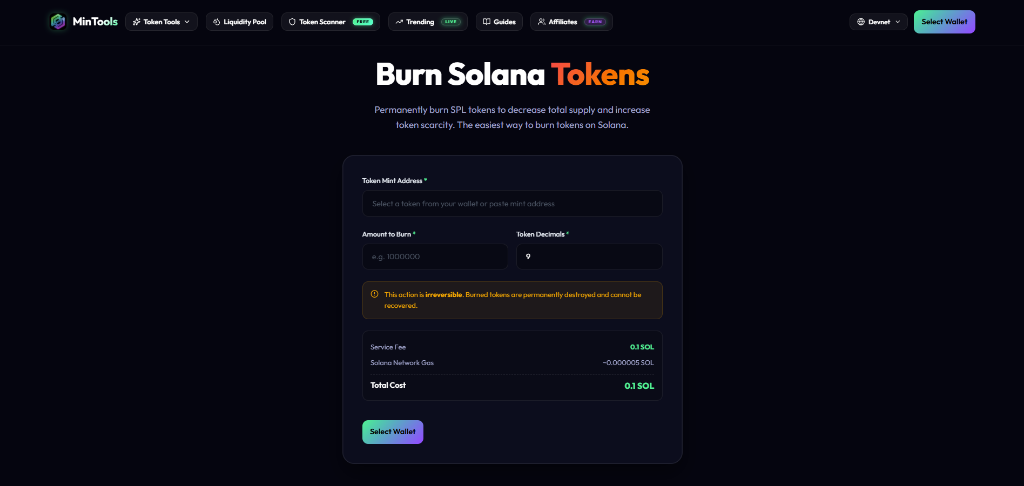
Head over to the [MinTools Burn Tokens](/burn-tokens) page. You will see a clean, professional form designed for token burning. The interface includes the following elements:
• **Token Mint Address** — The field where you select your token.
• **Amount to Burn** — The quantity of tokens you want to destroy.
• **Token Decimals** — The decimal precision of your token (auto-populated).
• **Irreversible Warning Banner** — A critical reminder: "This action is irreversible. Burned tokens are permanently destroyed and cannot be recovered."
Chapter 3: Connect Your Wallet and Select Your Token
To interact with the Solana blockchain, you must connect your Web3 wallet (such as Phantom, Solflare, or Backpack).
Step 2: Connect and Select Asset
Click the "Select Wallet" button. Once connected, click the **Token Mint Address** dropdown. The tool scans your wallet instantly and shows a list of all tokens currently held in your address, including their symbols, mint addresses, balances, and decimals. Select the token you wish to burn (in this example, CHROMUIM - CROM).
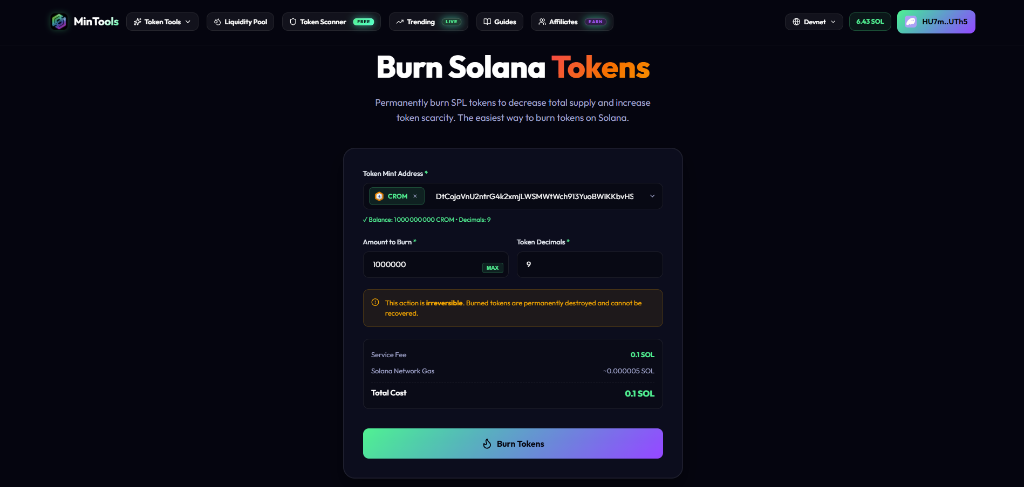
As shown in the screenshot, once a token is selected, the tool displays your exact balance in green: "Balance: 1000000000 CROM • Decimals: 9". This auto-detection prevents you from entering an amount greater than what you own.
Chapter 4: Configure the Burn Amount
Step 3: Enter the Amount to Destroy
Input the exact number of tokens you want to permanently burn in the **Amount to Burn** field.
• You can type the amount manually (e.g., 1000000 for 1 Million tokens).
• You can click the **MAX** badge inside the input field to automatically select your entire token balance if you want to burn the full amount.
MinTools will automatically detect the **Token Decimals** (usually 9 for standard Solana tokens) to ensure the precise number of base units is broadcast to the network. Double check this number before moving to the next step.

Chapter 5: Review the On-Chain Transaction Details
Before executing any irreversible burn, it is vital to review the transaction details carefully. MinTools provides a dedicated pre-sign review modal for safety.
Step 4: Click Burn Tokens and Review
Click the **"Burn Tokens"** button. A modal titled **"Review Burn Transaction"** will appear on your screen, summarizing the proposed operation:
• **Token Mint:** The abbreviated token address for validation (e.g., DtCo...bvhS).
• **Amount to Burn:** The human-readable quantity of tokens to be destroyed (e.g., 1000000 tokens).
• **Service Fee:** The flat MinTools platform fee (0.1 SOL).
• **Solana Network Gas:** The nominal network fee (a tiny fraction of a cent).
• **Priority Fee:** The priority fee applied to ensure your transaction is processed immediately even during network congestion.
• **Red Warning Badge:** A final reminder that burned tokens cannot be recovered.
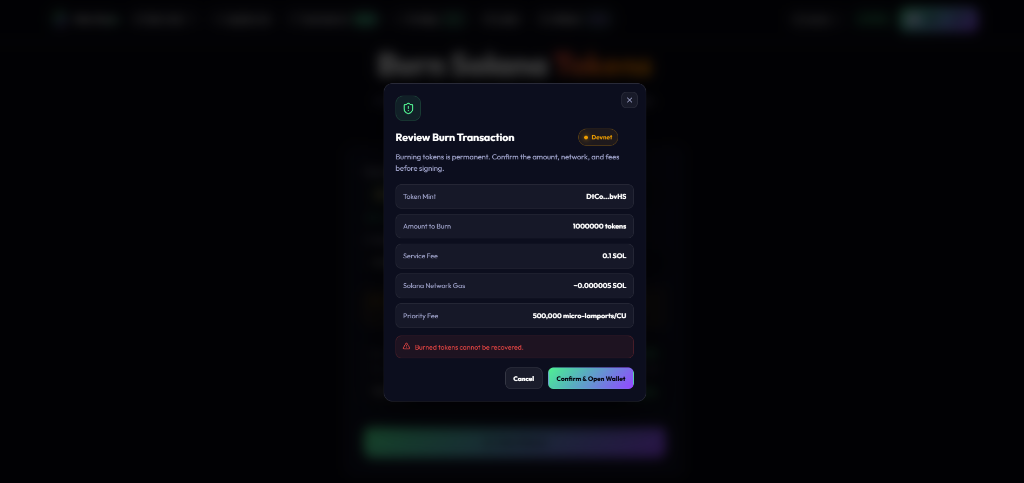
Review this details page. If everything looks correct, click **"Confirm & Open Wallet"** to initiate the signing process.
Chapter 6: Confirm and Authorize in Your Wallet
Step 5: Sign the Transaction
After clicking confirm, your connected Solana wallet (e.g., Phantom) will open a transaction prompt.
The prompt will display the transaction summary. In the screenshot, you can see:
• The SOL fee deduction (-0.1 SOL for the service fee).
• The token balance deduction (-1,000,000 CHROMUIM).
• The network fee (Frais du réseau: 0.00104 SOL).
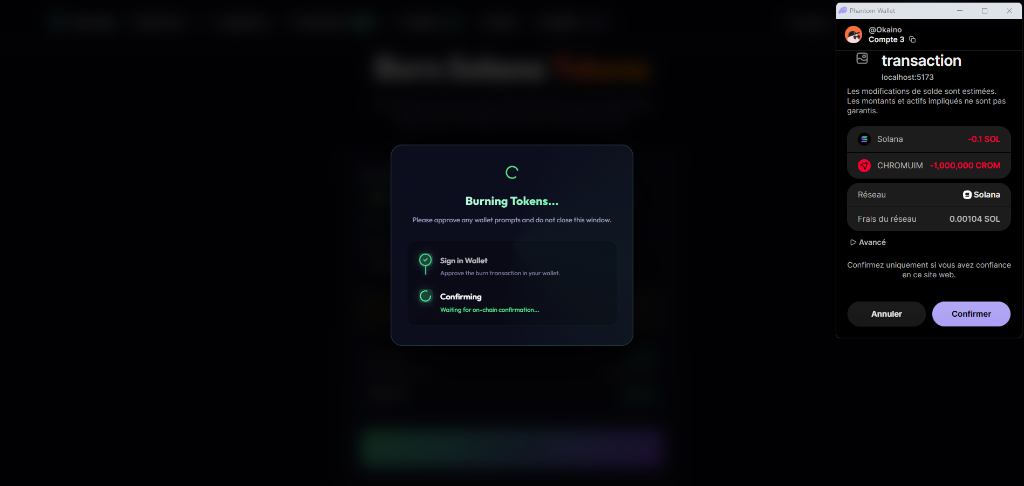
Click **"Confirmer"** (or Confirm) in your wallet. The MinTools interface will show a loading overlay: "Burning Tokens... Please approve any wallet prompts and do not close this window." indicating the transaction is being broadcast to the Solana network.
Chapter 7: Success — Verifying Your Destroyed Tokens
Within seconds, the transaction is processed by Solana validators.
Step 6: Burn Complete
A green success modal will pop up reading **"Burned! Tokens have been permanently destroyed."**
The success card displays:
• **Token Name and Ticker:** CHROMUIM ($CROM)
• **Amount Burned:** 1,000,000
• **Status:** Permanently Destroyed
• **Token Address:** The on-chain mint address.
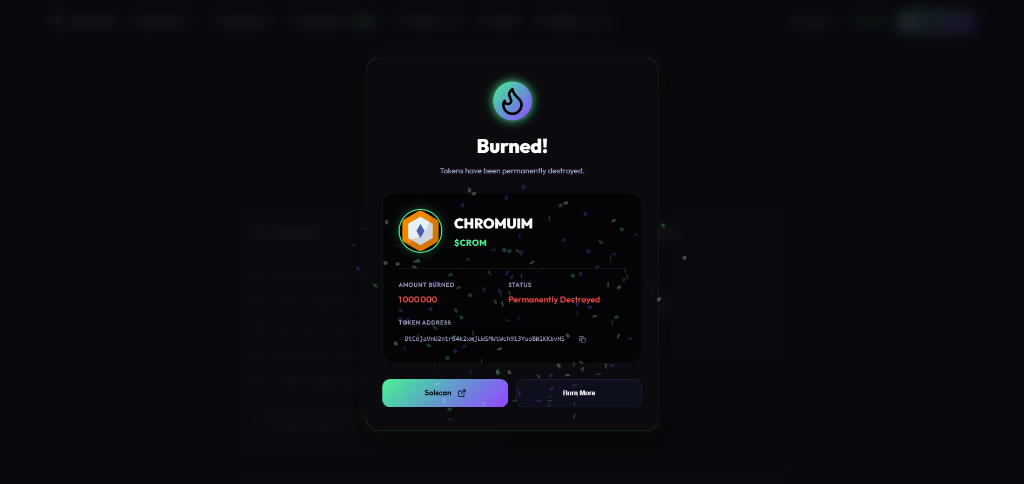
From here, you can click the **"Solscan"** button to view the official transaction receipt on the block explorer, showing the burn instruction and the updated total token supply. If you have more tokens to burn, click **"Burn More"** to return to the main form.
Chapter 8: Best Practices After Burning Tokens
Once your tokens are burned, you should take advantage of this milestone to strengthen your project's community relations:
• **Share the Solscan Receipt:** Post the Solscan transaction link on Twitter/X, Telegram, and Discord. Transparency builds immense trust with investors.
• **Update CoinGecko/DexScreener:** If your token is listed on tracking sites, submit a request to update your circulating supply metrics so they reflect the new, reduced supply.
• **Audit Your Token Metrics:** Run your token mint address through our [Token Scanner](/scanner) to ensure that the developer holdings and supply levels are healthy.
• **Secure Your Liquidity:** If you are managing liquidity, consider [burning or locking your Raydium LP tokens](/burn-lp) to prove you cannot pull the liquidity pool, providing the ultimate level of trust.
Frequently Asked Questions
Q: Can I recover my tokens after burning them?
A: No. Burning tokens is a cryptographic, irreversible operation. Once the tokens are sent to the on-chain burn instruction, they are permanently destroyed on the Solana ledger and can never be retrieved under any circumstances.
Q: Does burning tokens cost SOL?
A: Yes. MinTools charges a minor, flat service fee of 0.1 SOL to execute the burn transaction securely, plus standard Solana network gas fees (usually a fraction of a cent).
Q: What is the difference between burning tokens and sending them to a dead address?
A: Sending tokens to a "dead address" (like a wallet address with no known private key) removes them from active circulation but keeps them in the total supply on explorers. Executing an SPL Burn instruction actually destroys the tokens and decreases the total supply metadata on-chain, which is the correct way to reduce token supply.
Q: Can I burn LP tokens using this tool?
A: Yes, LP tokens are standard SPL tokens, so they can be burned here. However, to burn Raydium Liquidity Pool tokens, we recommend using our dedicated [Burn & Lock LP tool](/burn-lp), which is specifically optimized for liquidity pools.
Q: Do I need to hold the Mint Authority to burn tokens?
A: No. Anyone who holds tokens in their wallet can burn them at any time. You do not need to be the creator or the Mint Authority holder of the token to burn your own balance.
Ready to get started?
Launch the official tool directly from your browser with MinTools.
Burn Tokens Now