Introduction: What Does It Mean to Mint Solana Tokens?
In the Solana blockchain ecosystem, "minting" refers to the process of creating brand-new tokens and adding them to the total circulating supply of an existing SPL (Solana Program Library) token. Unlike [creating a new token from scratch](/create-token), minting operates on an already-deployed token mint address, injecting fresh units directly into a specified wallet.
This is one of the most powerful — and most misunderstood — capabilities available to Solana token creators. Whether you are running a meme coin community, building a DeFi utility token, managing a gaming rewards system, or operating a DAO treasury, understanding how and when to mint additional tokens is essential to your project's long-term success.
In traditional finance, this process is comparable to a central bank printing new currency. On Solana, however, it is governed by a cryptographic key called the **Mint Authority** — and only the wallet that holds this authority can execute a mint transaction. No government, no intermediary, no third party can override this permission. It is pure, decentralized control.
In this comprehensive guide, we will walk you through the entire minting process from start to finish: what Mint Authority is and why it matters, how to connect your wallet, how to select your token, how to configure amounts and destination wallets, how to confirm the blockchain transaction, and critical best practices for managing your token supply responsibly. Every step includes real screenshots taken directly from the [MinTools Mint Tokens](/mint-tokens) interface so you can follow along visually.
Chapter 1: Understanding Mint Authority — The Key to Minting
Before you can mint a single token, you must understand the concept of Mint Authority. This is the most critical piece of knowledge for any Solana token creator.
What is Mint Authority?
When you [create an SPL token](/create-token) on Solana, the blockchain assigns three administrative authorities to the creator's wallet address:
• **Mint Authority:** The power to create (mint) new tokens and add them to the total supply.
• **Freeze Authority:** The power to freeze token balances in any holder's wallet (learn more in our [Token Authorities Guide](/guides/solana-token-authorities-explained)).
• **Update Authority:** The power to modify the token's metadata (name, symbol, logo) via the [Update Metadata tool](/update-metadata).
The Mint Authority is stored on-chain as a public key. Only the wallet matching this public key can sign mint transactions. If you created your token using MinTools, your connected wallet is automatically assigned as the Mint Authority.
When Can You NOT Mint Tokens?
There are exactly two scenarios where minting is impossible:
1. **You Revoked Mint Authority:** If you used the [Revoke Authority tool](/revoke-authority) to permanently remove Mint Authority, the supply is capped forever. This action is irreversible — no one, not even you, can ever mint additional tokens.
2. **You Are Using the Wrong Wallet:** If you created the token with Wallet A but are currently connected with Wallet B, the blockchain will reject the mint transaction because Wallet B does not hold the Mint Authority.
Why Would You Want to Keep Mint Authority Active?
Many projects intentionally keep Mint Authority active for legitimate reasons:
• **Staking Rewards:** Protocols that reward token holders need to mint new tokens periodically as yield.
• **Team Vesting Schedules:** Projects with phased team allocations mint tokens on a pre-defined timeline.
• **Liquidity Expansion:** When [adding liquidity to Raydium pools](/create-liquidity), you may need additional token supply.
• **Airdrop Campaigns:** Marketing campaigns using the [Multi-Sender tool](/multi-sender) require tokens to distribute.
• **Gaming and NFT Ecosystems:** In-game currencies often need inflationary mechanics.
When Should You Revoke Mint Authority?
If your project is a fixed-supply meme coin or community token and you want to build maximum investor trust, revoking Mint Authority signals to the community that the supply can never be inflated. Our [Token Scanner](/scanner) and external tools like RugCheck.xyz will flag tokens with active Mint Authority as a potential risk, so consider your project's needs carefully.
Chapter 2: Navigate to the MinTools Mint Interface
Now that you understand the underlying mechanics, let's begin the actual minting process.
Step 1: Open the Mint Tokens Page
Navigate to the [MinTools Mint Tokens](/mint-tokens) page. You will see a clean, intuitive interface with the following form fields:
• **Token Mint Address** — A searchable dropdown to select or paste your token's on-chain mint address.
• **Destination Wallet (Optional)** — An optional field to specify where the newly minted tokens should be sent.
• **Amount to Mint** — The quantity of new tokens to create.
• **Token Decimals** — The decimal precision of your token (auto-detected after selecting your token).
At the bottom of the form, you will see a transparent fee breakdown showing the MinTools Service Fee (0.1 SOL) and the Total to Pay.
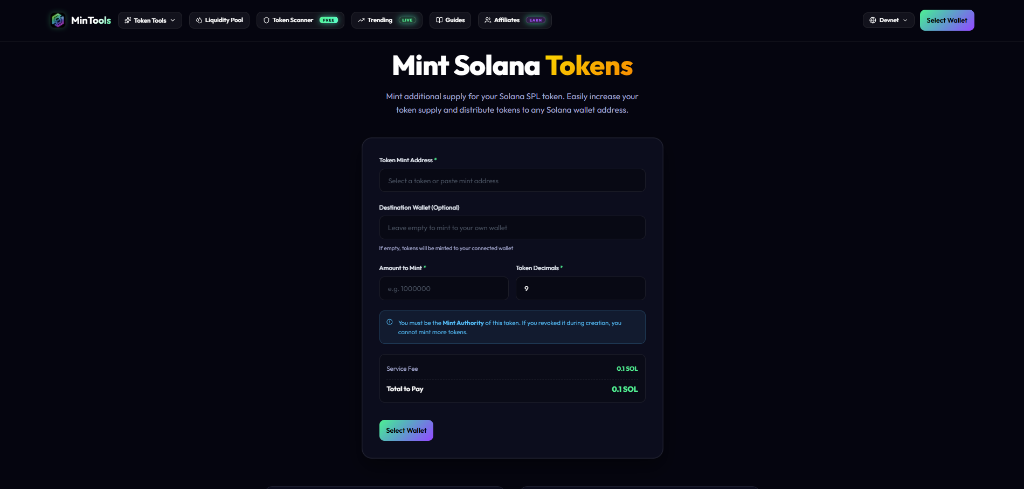
Notice the important information banner at the bottom of the form: "You must be the Mint Authority of this token. If you revoked it during creation, you cannot mint more tokens." This is a critical reminder — if you see this warning and your token does not appear in the dropdown, it means your Mint Authority has been revoked.
Chapter 3: Connect Your Solana Wallet
To interact with the Solana blockchain, you must connect a Web3 wallet. MinTools supports all major Solana wallets including Phantom, Solflare, Backpack, Ledger (via browser extension), Trust Wallet, and Coin98.
Step 2: Click "Select Wallet" to Connect
Click the green "Select Wallet" button at the bottom of the form (or the wallet button in the top-right navigation bar). A connection modal will appear showing all detected wallet extensions installed in your browser.
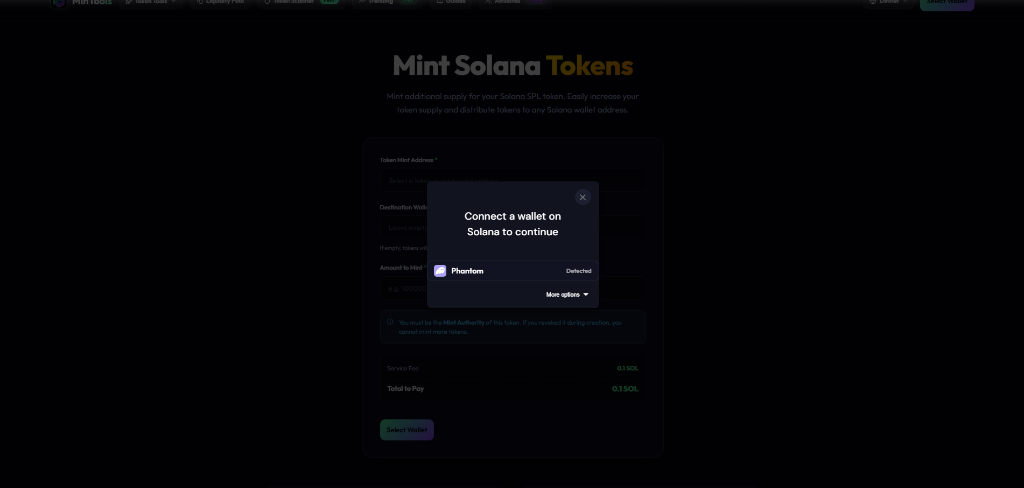
In this example, the Phantom wallet extension is automatically detected and displayed with a "Detected" badge. Click on your preferred wallet provider to initiate the connection.
Your wallet extension will open a popup asking you to approve the connection request. Click "Connect" in your wallet to authorize MinTools to read your public key and token balances. This is a read-only connection — MinTools never has access to your private keys or seed phrase.
Once connected, you will see your wallet address and SOL balance displayed in the top-right corner of the navigation bar. This confirms that your wallet is successfully linked and ready to sign transactions.
Troubleshooting Wallet Connection Issues:
• **Wallet Not Detected:** Make sure your wallet browser extension is installed, enabled, and not blocked by any ad-blocker or privacy extension.
• **Wrong Network:** Ensure your wallet is set to Solana Mainnet (not Devnet or Testnet) unless you are intentionally testing. You can learn how to switch networks in our [Devnet Guide](/guides/how-to-create-solana-token-free-devnet).
• **Multiple Wallets Installed:** If you have both Phantom and Solflare installed, the modal will show both options. Select the wallet that holds the Mint Authority for your target token.
Chapter 4: Select Your Token from the Dropdown
After connecting your wallet, the **Token Mint Address** field becomes active and ready for selection.
Step 3: Choose the Token You Want to Mint
Click on the Token Mint Address dropdown. MinTools will automatically scan your connected wallet and display a comprehensive list of all SPL tokens where your wallet is the current Mint Authority. Each token entry shows:
• **Token Logo and Name** — The visual identity from on-chain metadata.
• **Token Symbol** — The shorthand ticker (e.g., CRON, FRHT, AGX).
• **Truncated Mint Address** — The first and last characters of the on-chain address for verification.
• **Current Balance** — Your wallet's holdings of that specific token.
• **Token Decimals** — The precision level (e.g., 9 dec).
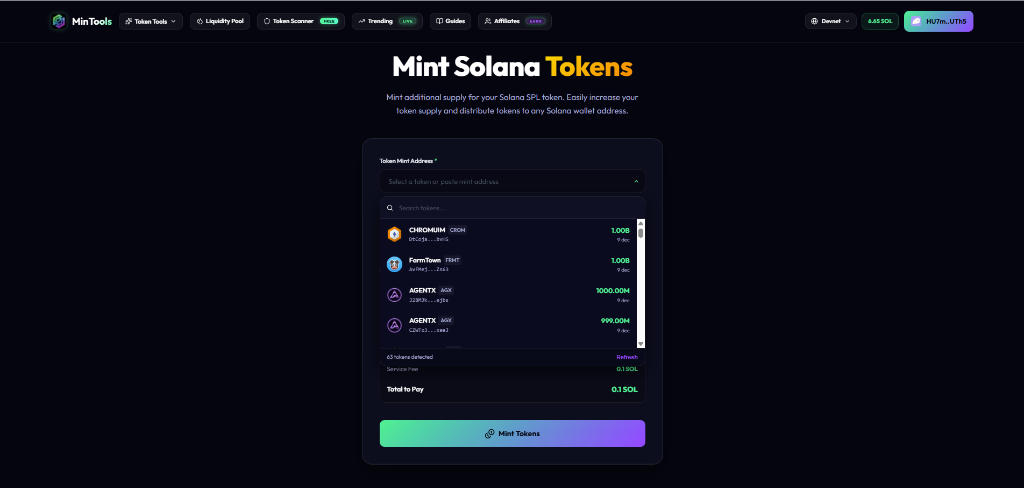
In the screenshot above, you can see multiple tokens detected in the connected wallet: CHROMUIM (CRON) with 1.00B supply, FarmTown (FRHT) with 1.00B supply, AGENTX (AGX) with 1000.00M and 999.00M entries. The interface also shows "63 tokens detected" at the bottom with a "Refresh" button to re-scan if needed.
You can also use the search bar at the top of the dropdown to quickly filter tokens by name, symbol, or mint address. This is especially useful if you manage a large portfolio of tokens.
Alternatively, if you know the exact mint address of your token, you can paste it directly into the field without using the dropdown. MinTools will automatically validate the address and check whether your wallet holds the Mint Authority.
Chapter 5: Configure the Minting Parameters
Once you select your token, the form populates with critical on-chain data and you can configure exactly how many tokens to create and where to send them.
Step 4: Fill Out the Minting Form
After selecting your token (in this example, the AGENTX token), the interface updates to display:
• **Token Mint Address:** The full on-chain address is shown (e.g., 79qRCi2zjR1NSoUi3SSe2vAmpX2M6yAtdo92c4oJt) with a green badge confirming the token selection.
• **Mint Authority Status:** A prominent green banner reading "Mint Authority: You (Creator)" confirms that your connected wallet has permission to mint. If someone else held the Mint Authority, this banner would indicate that, and minting would be blocked.
• **Current Supply Info:** Below the Mint Authority banner, you will see the current on-chain data: "Current Supply in Wallet: 1000000000 tokens • Decimals: 9".
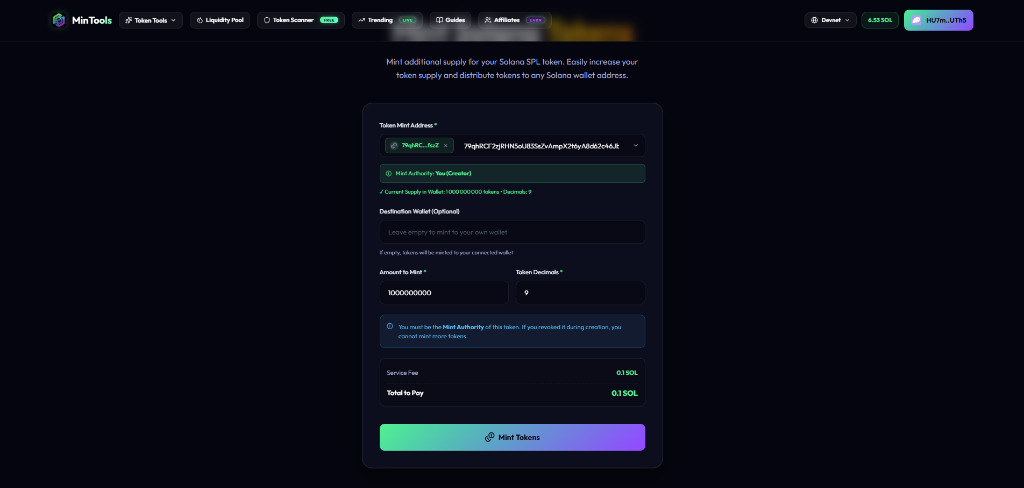
Now configure the following fields:
**Destination Wallet (Optional)**
This field determines where the newly minted tokens will be deposited. You have two options:
• **Leave it empty:** The tokens will be minted directly into your own connected wallet. This is the most common choice.
• **Enter a specific wallet address:** Use this to mint tokens directly to a team member's wallet, an exchange deposit address, a DAO treasury, or a [Multi-Sender staging wallet](/multi-sender) for batch airdrop distribution.
**Amount to Mint**
Enter the exact number of new tokens you want to create. In the screenshot, 1,000,000,000 (1 Billion) tokens are being minted. There is no upper limit imposed by MinTools — the maximum amount is determined by the Solana network's u64 integer cap (18,446,744,073,709,551,615 raw units).
Best practices for choosing your mint amount:
• **Meme Coins:** Mint large supplies (1B - 1T) to keep the per-token price extremely low, which is psychologically appealing to retail buyers.
• **Utility Tokens:** Mint only what you need for the current phase (e.g., staking rewards for Q3 2026) to maintain supply discipline.
• **Gaming Tokens:** Mint in controlled batches tied to in-game events or season launches.
**Token Decimals**
This field auto-populates based on your token's on-chain configuration (typically 9 for standard SPL tokens). Do not change this unless you specifically created a token with non-standard decimals.
Chapter 6: Review, Sign, and Confirm the Transaction
You are now ready to execute the minting transaction on the Solana blockchain.
Step 5: Review and Execute
Before clicking the "Mint Tokens" button, carefully review the complete transaction summary displayed at the bottom of the form:
• **Service Fee:** 0.1 SOL (MinTools platform fee)
• **Total to Pay:** 0.1 SOL (service fee + negligible Solana network gas fees)
Once you are satisfied with all parameters, click the gradient **"Mint Tokens"** button. The following process will execute:
1. **Transaction Construction:** MinTools constructs a Solana transaction containing the SPL Token MintTo instruction, specifying your token's mint address, the destination wallet, and the raw token amount (adjusted for decimals).
2. **Wallet Signing Prompt:** Your wallet extension (e.g., Phantom) will display a popup showing the transaction details, including the SOL fee deduction and the token amount being minted.
3. **Broadcasting:** Once you click "Confirm" in your wallet, the signed transaction is broadcast to the Solana network.
4. **On-Chain Confirmation:** Solana validators process the transaction in under 400 milliseconds. The tokens are instantly created and deposited into the destination wallet.
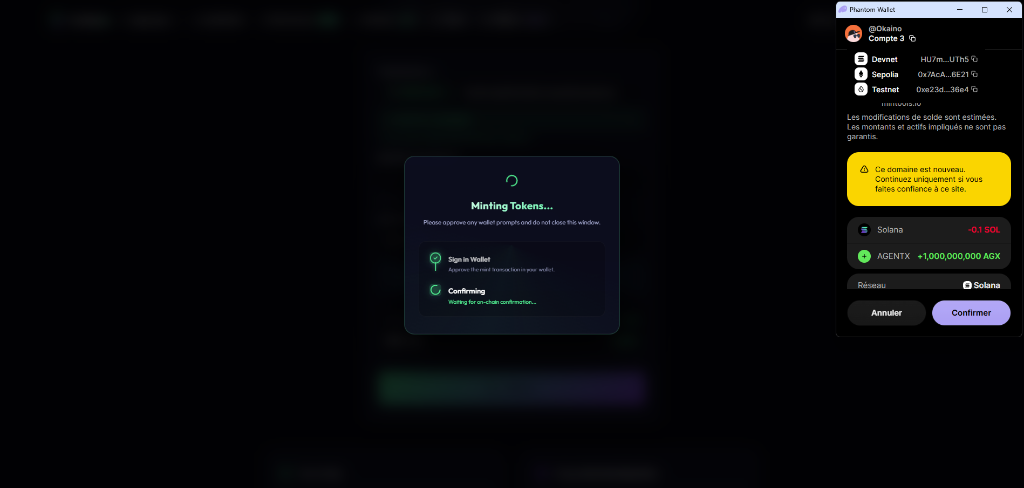
In the screenshot above, you can see the Phantom wallet confirmation popup displaying:
• The connected account and network (Solana Mainnet)
• The SOL fee being deducted (-0.1 SOL)
• The tokens being received (+1,000,000,000 AGX for the AGENTX token)
• Confirm and Cancel buttons
The MinTools interface also shows a loading state: "Minting Tokens..." with two progress indicators — "Sign in Wallet" (approved) and "Confirming" (waiting for on-chain confirmation). This real-time feedback ensures you know exactly what stage the transaction is at.
Once confirmed, the newly minted tokens will immediately appear in the destination wallet's token balance. You can verify the transaction on [Solscan](https://solscan.io) or [Solana Explorer](https://explorer.solana.com) by searching your wallet address or the token mint address.
Chapter 7: What Happens After Minting — Next Steps
Congratulations — you have successfully minted additional tokens for your Solana SPL token! But the work does not stop here. Here are the most important next steps to consider depending on your project type:
For Meme Coin and Community Token Projects:
• **Add Liquidity:** If you minted tokens to fund a new [Raydium Liquidity Pool](/create-liquidity), proceed to the pool creation page and deposit your tokens alongside SOL to establish a trading market.
• **Burn Excess Supply:** If you minted more tokens than needed, use the [Burn Tokens tool](/burn-tokens) to permanently remove them from circulation, reducing total supply and increasing scarcity.
• **Lock or Burn LP Tokens:** After creating a liquidity pool, secure investor trust by [burning or locking your LP tokens](/burn-lp) to prove that you cannot rug-pull the pool.
For Utility and DeFi Projects:
• **Distribute to Team Wallets:** Use the [Multi-Sender Airdrop tool](/multi-sender) to batch-distribute minted tokens to team members, advisors, or community contributors in a single transaction.
• **Revoke Mint Authority (When Ready):** Once your total planned supply has been fully minted and distributed, consider [revoking Mint Authority](/revoke-authority) to permanently cap the supply and signal maximum trust to your community.
• **Update Token Metadata:** If your project is evolving, use the [Update Metadata tool](/update-metadata) to refresh your token's name, description, logo, or social links.
For Gaming and NFT Ecosystems:
• **Schedule Regular Mints:** Many gaming tokens operate on inflationary schedules. Plan your minting cadence to align with in-game seasons, reward cycles, or staking epochs.
• **Monitor Supply Health:** Use the [Token Scanner](/scanner) to audit your token's health metrics and ensure that the minted supply aligns with your published tokenomics.
Security Reminder:
Every mint transaction is permanently recorded on the Solana blockchain. Investors and community members can verify your minting history on block explorers. Transparent communication about why you are minting additional tokens (e.g., announcing it on Twitter or Telegram before the mint) builds trust and prevents community panic.
Chapter 8: Common Mistakes and How to Avoid Them
Even experienced Solana developers make mistakes when minting tokens. Here are the most common pitfalls and how to avoid them:
1. Minting with the Wrong Wallet
Problem: You created the token with Wallet A but are trying to mint with Wallet B.
Solution: Disconnect your current wallet and reconnect with the wallet that originally created the token (the Mint Authority holder). You can verify which wallet holds Mint Authority by checking the token's mint account on Solscan.
2. Forgetting to Account for Decimals
Problem: You want to mint 1,000 tokens but your token has 9 decimals, so you accidentally mint 0.000001 tokens.
Solution: MinTools automatically handles decimal conversion for you. When you type "1000" in the Amount field, it correctly sends the raw amount of 1000 × 10^9 = 1,000,000,000,000 base units to the blockchain. Always use the human-readable amount, not the raw on-chain value.
3. Minting to the Wrong Destination Wallet
Problem: You paste an incorrect wallet address in the Destination field and the tokens go to an address you do not control.
Solution: Triple-check the destination address before confirming. Minting transactions are irreversible — once tokens are sent to an address, only the owner of that address can move them. If in doubt, leave the field empty to mint to your own wallet first.
4. Not Having Enough SOL for Fees
Problem: The transaction fails because your wallet does not have enough SOL to cover the 0.1 SOL service fee plus network gas.
Solution: Ensure your wallet has at least 0.15 SOL before initiating a mint. If you are low on SOL, you can [claim free rent SOL](/claim-free-sol) from closed accounts or acquire SOL from an exchange.
5. Minting After Revoking Mint Authority
Problem: You revoked Mint Authority after initial token creation and now cannot mint more tokens.
Solution: Unfortunately, revoking Mint Authority is permanent and irreversible. There is no way to restore it. The total supply at the time of revocation becomes the permanent cap. Plan your total supply carefully before revoking.
Frequently Asked Questions
Q: What does it cost to mint additional Solana tokens?
A: Minting additional tokens on MinTools costs a flat service fee of 0.1 SOL, plus negligible Solana network transaction fees (typically less than 0.0001 SOL). This makes MinTools one of the most affordable minting solutions in the Solana ecosystem.
Q: Why does my token not appear in the Token Mint Address dropdown?
A: The dropdown only displays tokens where your currently connected wallet holds active Mint Authority. If your token does not appear, either (1) you connected the wrong wallet, (2) you already revoked Mint Authority for that token, or (3) the token was created by a different wallet. Try disconnecting and reconnecting with the correct wallet.
Q: Can I mint tokens directly to someone else's wallet?
A: Yes. Enter any valid Solana wallet address in the "Destination Wallet" field, and the newly minted tokens will be deposited directly into that wallet. This is useful for distributing tokens to team members, exchanges, or DAO treasuries without requiring an additional transfer transaction.
Q: Is there a maximum number of tokens I can mint at once?
A: There is no practical limit imposed by MinTools. The theoretical maximum is determined by the Solana blockchain's u64 integer limit (approximately 18.4 quintillion raw units). For a standard 9-decimal token, this translates to roughly 18.4 billion tokens per mint transaction.
Q: Can I undo a minting transaction if I minted too many tokens?
A: No — minting transactions are irreversible once confirmed on the Solana blockchain. However, if you minted too many tokens, you can use the MinTools Burn Tokens tool to permanently destroy the excess supply, effectively reducing the total circulating amount.
Q: What is the difference between creating a token and minting a token?
A: Creating a token (using the Token Creator) deploys a brand-new SPL token mint on the Solana blockchain with an initial supply, metadata (name, symbol, logo), and authority settings. Minting tokens (using the Mint Tokens tool) adds additional supply to an already-existing token. Think of creation as building the factory, and minting as running the production line.
Q: Do I need to revoke Mint Authority to list on Raydium?
A: No — Raydium does not require Mint Authority revocation to create a liquidity pool. However, Raydium does require Freeze Authority to be revoked. That said, many investors and automated token scanners prefer tokens with revoked Mint Authority as it guarantees a fixed supply.
Q: Can I mint tokens on Devnet for testing before going to Mainnet?
A: Absolutely! MinTools supports both Devnet and Mainnet. Switch your wallet to Devnet mode, create a test token using free test SOL, and practice the minting process risk-free. Follow our complete Devnet testing guide for detailed instructions.
Q: Will minting new tokens affect the price of my token on DEXs?
A: Not directly. Minting creates new tokens but does not automatically inject them into liquidity pools. The price on Raydium, Jupiter, or other DEXs is determined by the ratio of tokens to SOL in the pool. However, if you mint tokens and then sell them into the pool, the increased supply will push the price down. Responsible supply management is key to maintaining investor confidence.
Q: Which wallets are supported for minting tokens on MinTools?
A: MinTools supports all major Solana wallets including Phantom, Solflare, Backpack, Ledger (via browser extension), Trust Wallet, Coin98, and any wallet that implements the Solana Wallet Adapter standard. Simply install the wallet browser extension and it will appear in the connection modal.
Ready to get started?
Launch the official tool directly from your browser with MinTools.
Mint Tokens Now